8 web browsers for android, which one is the best?
There are a ton of browsers for Android, each with different strengths. Most people pick one and never look back, but I installed eight of the top Android browsers and tested them side-by-side. I’ll score each from 1-5 in three categories:
- Privacy: how private is the browser itself, and how private are its connections to webpages?
- User Interface: how intuitive and user-friendly is the browser’s design?
- Customization: how flexible is the browser in terms of settings and features?
TL;DR
| Rank | Browser | Privacy | User Interface | Customization | Cumulative score | Would I ever use it? |
|---|---|---|---|---|---|---|
| 1 | Brave | 5 | 3.5 | 3 | 11.5 | 🟨 |
| 2 | DuckDuckGo | 5 | 4.5 | 1.5 | 11 | 🟩 |
| 3 | Firefox | 4 | 3 | 4 | 11 | 🟩 |
| 4 | Opera | 3.5 | 4 | 3 | 10.5 | 🟥 |
| 5 | Vivaldi | 4 | 2.5 | 3.5 | 10 | 🟥 |
| 6 | Microsoft Edge | 3 | 4 | 2.5 | 9.5 | 🟨 |
| 7 | Google Chrome | 1 | 5 | 2.5 | 8.5 | 🟨 |
| 8 | Samsung Internet | 2 | 2 | 3 | 7 | 🟥🟥🟥 |
1. Google Chrome


I’ll be honest, Google Chrome is a very good browser from a pure utility perspective. That doesn’t mean I like it, though.
- Privacy: 1/5 Chrome collects a lot of user data and has been criticized for its privacy practices. If you’re signed into a Google account (which you probably are if you’re using the browser on Android), your browsing data is saved to your Google account and used for ad targeting amongst other things. While users are given the capability to opt out of most privacy-violating features, such as targeted advertising, it’s concerning that they’re enabled by default.
- User Interface: 5/5 Chrome looks pretty by default, and probably implements Material Design better than any other browser available on Android (as you might expect from a browser made by the same company). It’s clean, follows the system accent color, and is the only browser on this list that doesn’t suffer from the ugly “gray topbar” issue when the address bar is at the bottom.
- Customization: 2.5/5 Chrome has limited customization, including moving the navigation bar to the bottom of the screen and switching between a light and dark theme. Unlike its desktop counterpart, the Android app does not support extensions at all. Most components are styled based on the system color scheme. After disabling the news feed which is enabled by default on the new tab page, the bottom of the new tab page will show “Discover - off” until you turn it back on, which I find slightly aggravating.
Cumulative Score: 8.5/15
2. Mozilla Firefox
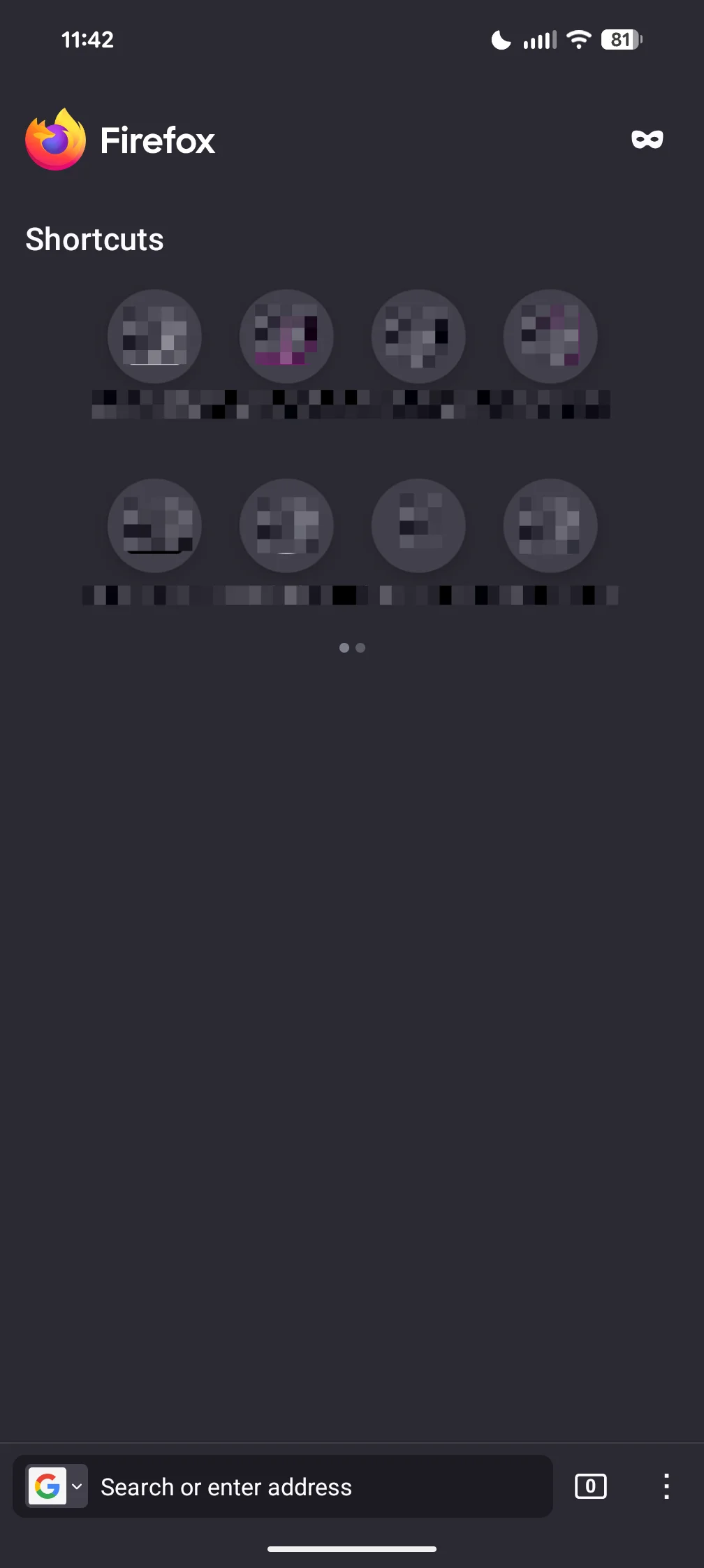
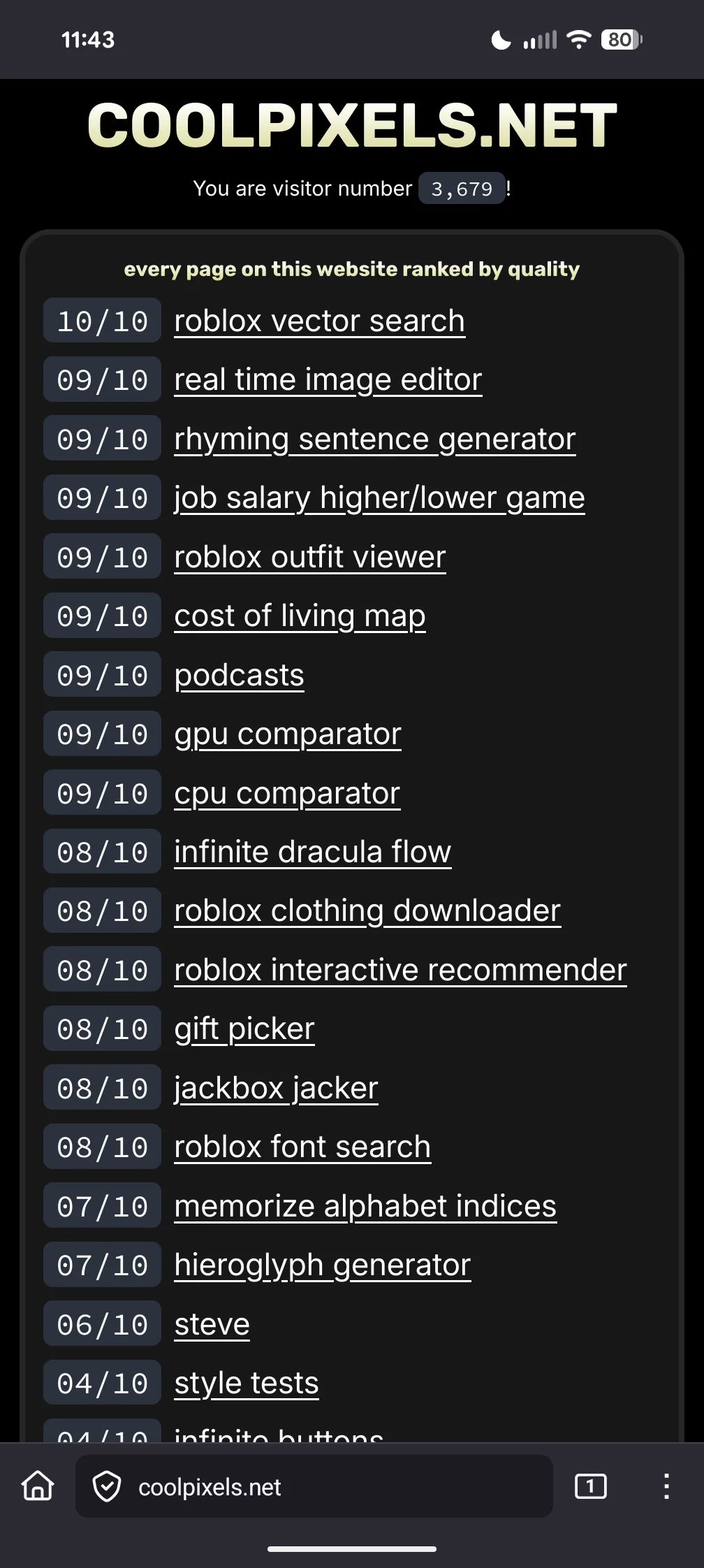
Firefox is my favorite web browser for Android, it’s what I daily drive. It isn’t without its flaws, however.
- Privacy: 4/5 Firefox is fairly private by default, with strong tracking protection and a commitment to user privacy. By default, telemetry settings such as “send technical and interaction data to Mozilla” are enabled, which isn’t ideal, but it can be disabled.
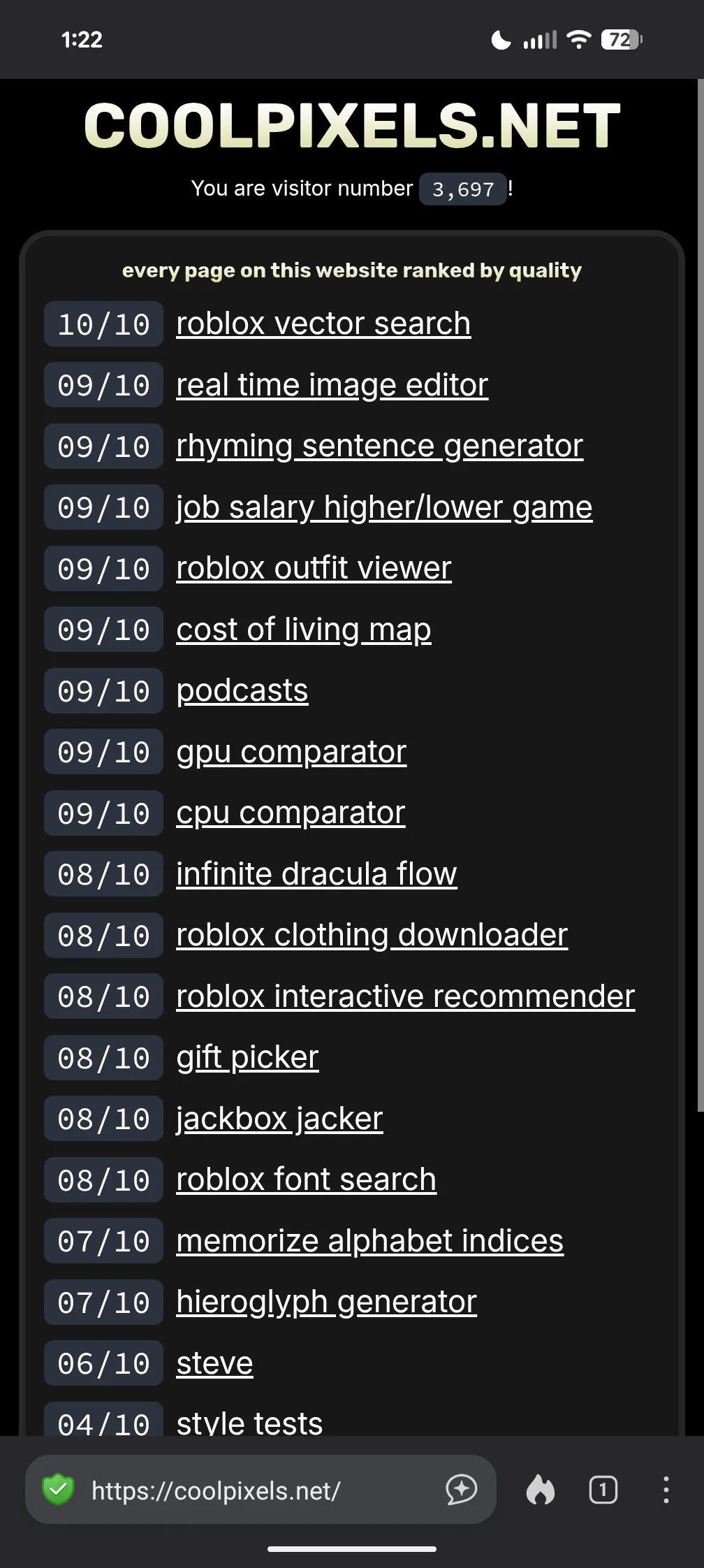
- User Interface: 3/5 Firefox’s mobile app looks… meh. It isn’t downright ugly by any means, but it could do with some refinement. I find its color scheme to be less tasteful than some of its competitors and its overall design to be a bit dated. Also, the giant gray bar at the top of each page when the navigation bar is aligned to the bottom confuses me. It’s visible in the second screenshot above. It could use the website’s accent color or it could simply not exist, but it’s there.
- Customization: 4/5 Like Chrome, it only supports toggling between a light and dark theme, but extensions are where it really shines. There are a plethora of extensions available for Firefox for Android, including uBlock Origin, although it doesn’t support as many extensions as its desktop counterpart. It supports moving the tab bar to the top or bottom of the browser.
Cumulative Score: 11/15
3. Brave Browser
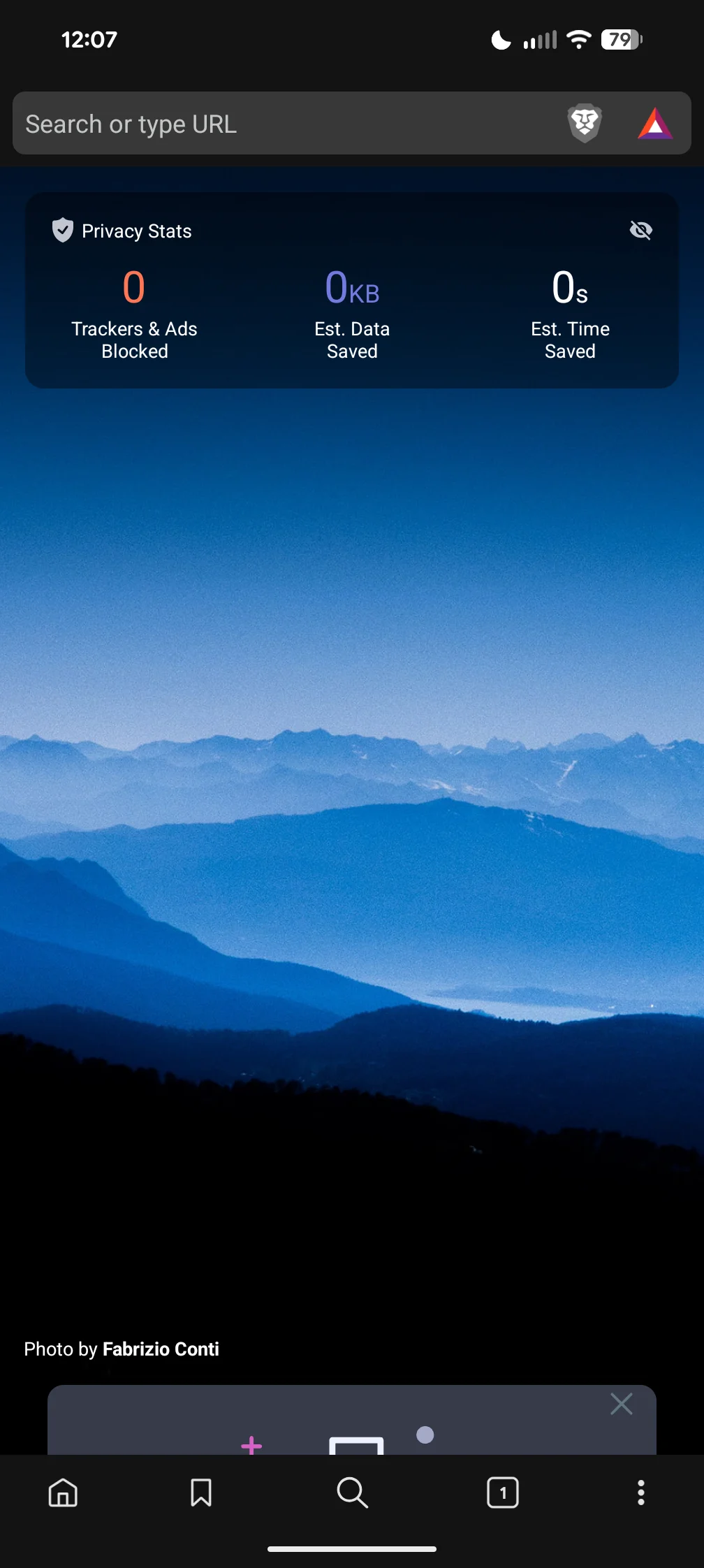
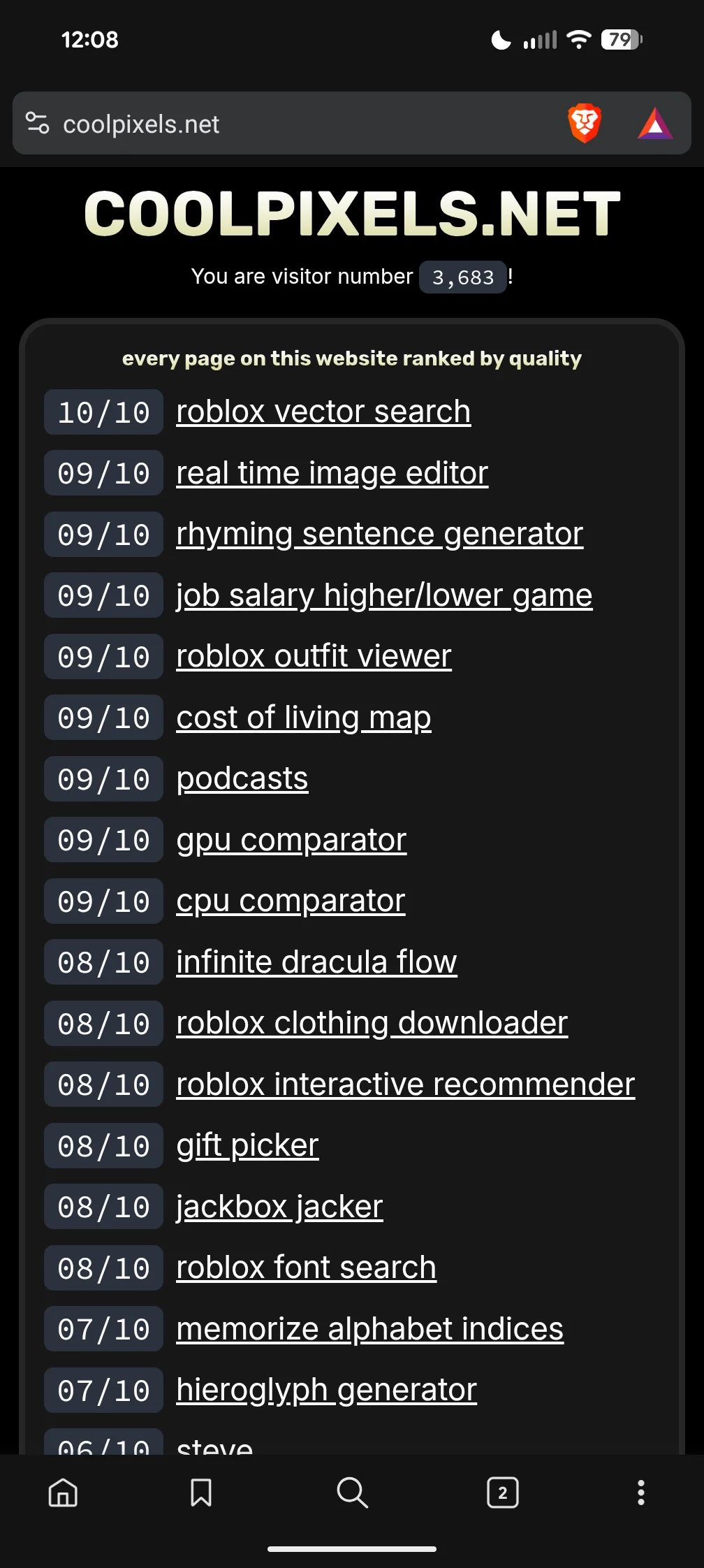
Brave is a decent browser. I don’t like its crypto functionality, but it is functional and good-looking by default.
- Privacy: 5/5 Brave is built with privacy in mind, blocking ads and trackers by default. It also offers features like fingerprinting protection and the ability to browse with Tor.
- User Interface: 3.5/5 I have mixed feelings about Brave’s user interface. After spending a few seconds customizing it I like it a lot, but it’s very cluttered by default. The tab bar can be moved to the bottom, but by default there is a navigation section at the bottom with buttons for various functions. The tab bar contains a button by default which opens the Brave Rewards panel, which I find kind of icky. After customizing it however, I find it cleaner and better-looking than Firefox, although slightly visually inferior to Chrome. It has the same gray topbar I disliked in Firefox when the tab bar is set to the bottom of the screen, but at least it’s a little darker.
- Customization: 3/5 Brave offers a regular amount of customization options, such toggling between a light and dark theme and adjusting privacy settings. The Android app does not support extensions, however this is less of an issue than with Chrome thanks to its everything by default approach meaning it has a lot of extension features built in, such as ad and tracker blocking.
Cumulative Score: 11.5/15
4. Microsoft Edge

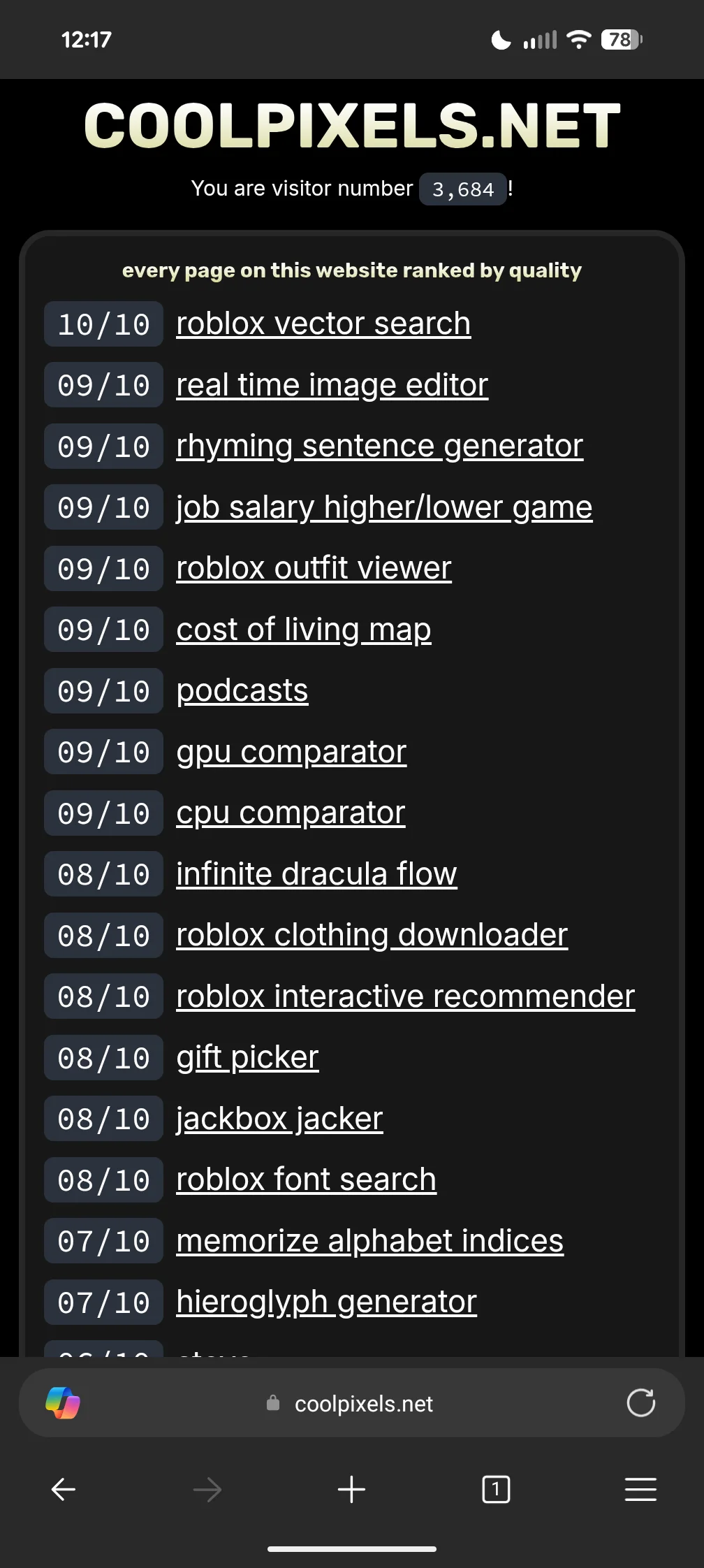
Microsoft Edge, known for its usage being referred to as “Edging”, is certainly a controversial browser. After having the displeasure of using it on desktop, I was pleasantly surprised by the mobile experience the app provides.
- Privacy: 3/5 While it’s certainly more private than Chrome, it collects some telemetry data by default, which may be a concern for privacy-focused users. It’s still a Microsoft product, so some data collection is expected.
- User Interface: 4/5 I found Microsoft Edge’s user interface to be quite pleasant. The new tab page, like the desktop version, shows the Bing image of the day. It’s a small touch, but I really like that the tab bar is transparent by default on the new tab page. It seems like the weather and account indicator in the top left can’t be removed, though. It also isn’t currently possible to remove the Copilot button in the search bar, which I found disappointing. The gray topbar returns, however. Why?!
- Customization: 2.5/5 The new tab page is fairly customizable. However, the main UI that’s visible on every page isn’t. As far as I know, the Copilot button will be visible on every page and the bottombar cannot be disabled. There is a light and dark theme and the address bar can be moved to the top or bottom of the screen. It does not support extensions.
Cumulative Score: 9.5/15
5. Samsung Internet
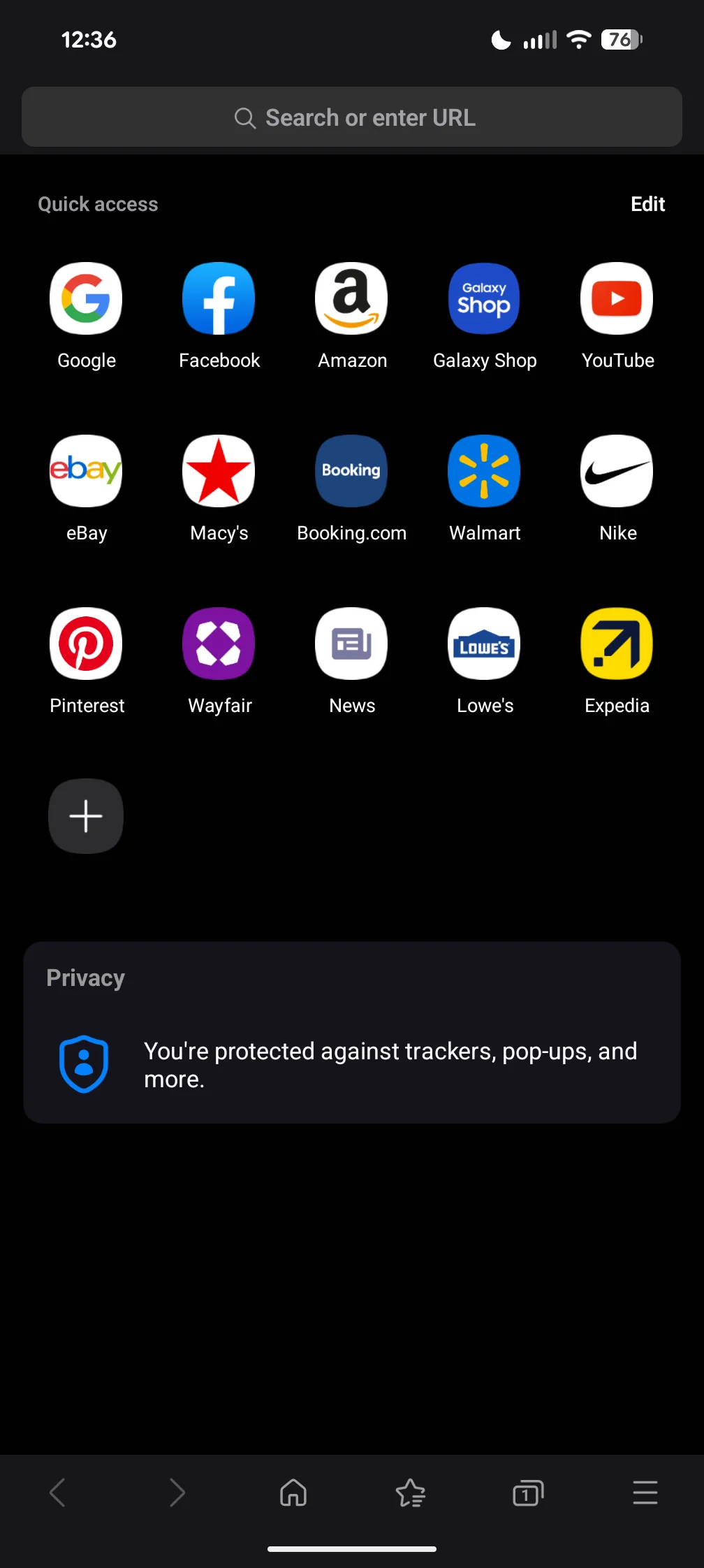
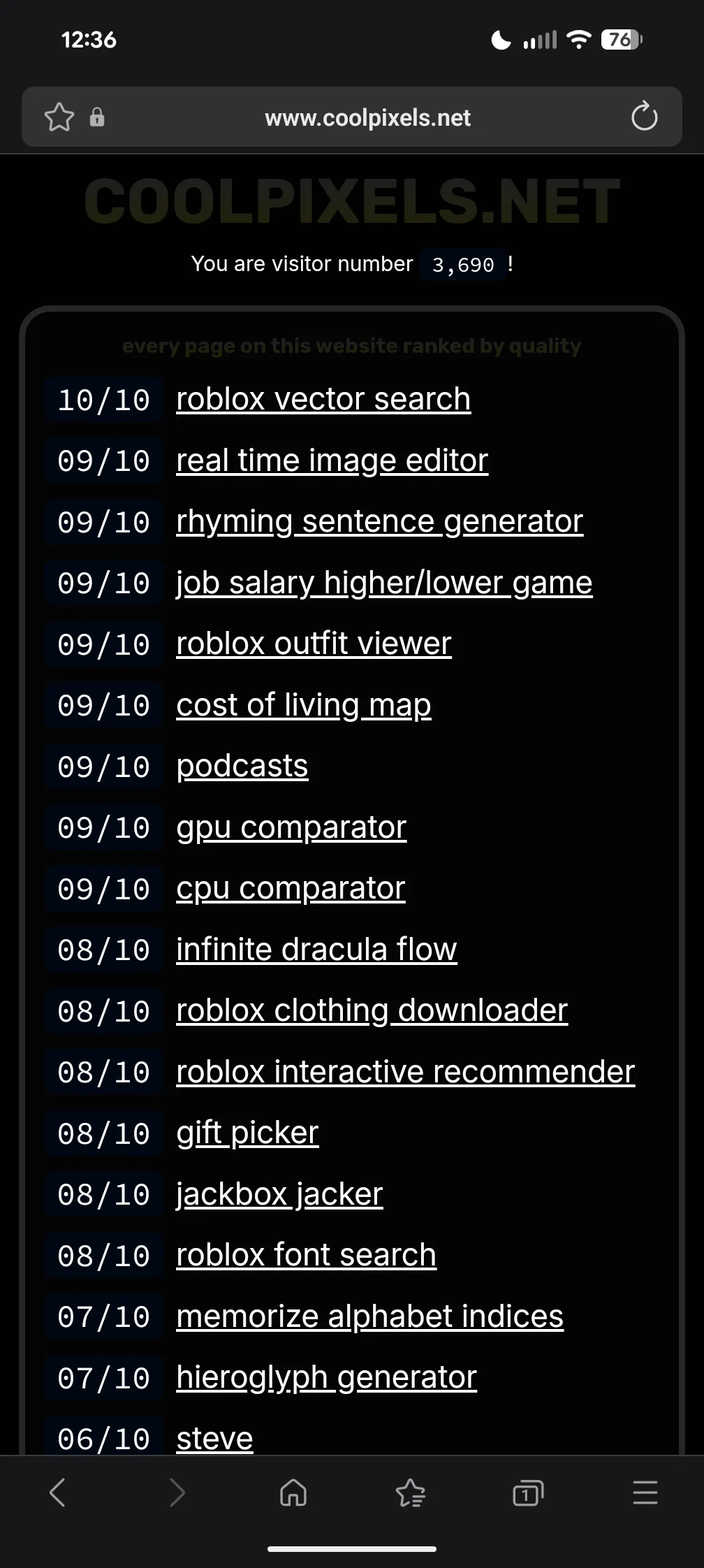
When I think of my experience using Samsung Internet, the phrase that immediately comes to mind is “not bad” HEADACHE (foreshadowing). I think that 99% of this website’s users are Samsung phone users who didn’t bother to install any other browser. Its default settings are odd, and the default new tab page falls victim to the same information overload of Edge’s new tab page on desktop.
- Privacy: 2/5 Samsung Internet includes a variety of privacy features, such as ad blocking and tracking protection, but it has telemetry by default and is still a product from a hardware giant that loves user data.
- User Interface: 2/5 The new tab page can be customized to the point of having nearly nothing on it, and the bottombar supports changing which icons it contains. The settings are kind of a mess, and I’m docking half a point because by default it forces a dark theme on, as far as I know, any website which does not communicate that it has a dark theme through metadata. This makes my website very ugly unless you find the place in setting where you can disable this in a section titled “Labs”. The address bar can be moved to the bottom of the screen, and a tab bar and bookmarks bar can both be enabled which display their respective content in a horizontally scrolling toolbar. It’s just plain ugly.
- Customization: 3/5 Samsung Internet offers a decent level of customization, including the ability to change the layout of the new tab page. It also supports extensions, although for me the “get more add-ons” button is greyed out and I can only choose from six adblockers which must be installed from the Play Store. No matter how I customized this browser, I found it ugly. This is the only browser on the list that I would be unhappy if I had to daily drive.
Cumulative Score: 7/15
Note: I got a headache while using this browser.
6. Opera


Opera is a sleek, modern browser that packs a lot of functionality into its Android app-some of it useful, some of it a little odd.
- Privacy: 3.5/5 Opera asks about telemetry on first run and includes several built-in features that touch your browsing experience, but it also ships with an effective ad blocker and basic tracker protections.
- User Interface: 4/5 The UI is polished and modern. The bottombar is customizable and the address bar can be moved to the bottom. There are small rough edges (such as the pervasive gray topbar), but overall it looks and feels good.
- Customization: 3/5 Opera offers things like an accent color option, a customizable bottombar, and built-in AI features which can be disabled. However, it doesn’t support third-party Android extensions and some default content (eg. promotional tiles on speed dial) can be annoying.
Cumulative Score: 10.5/15
7. DuckDuckGo Privacy Browser
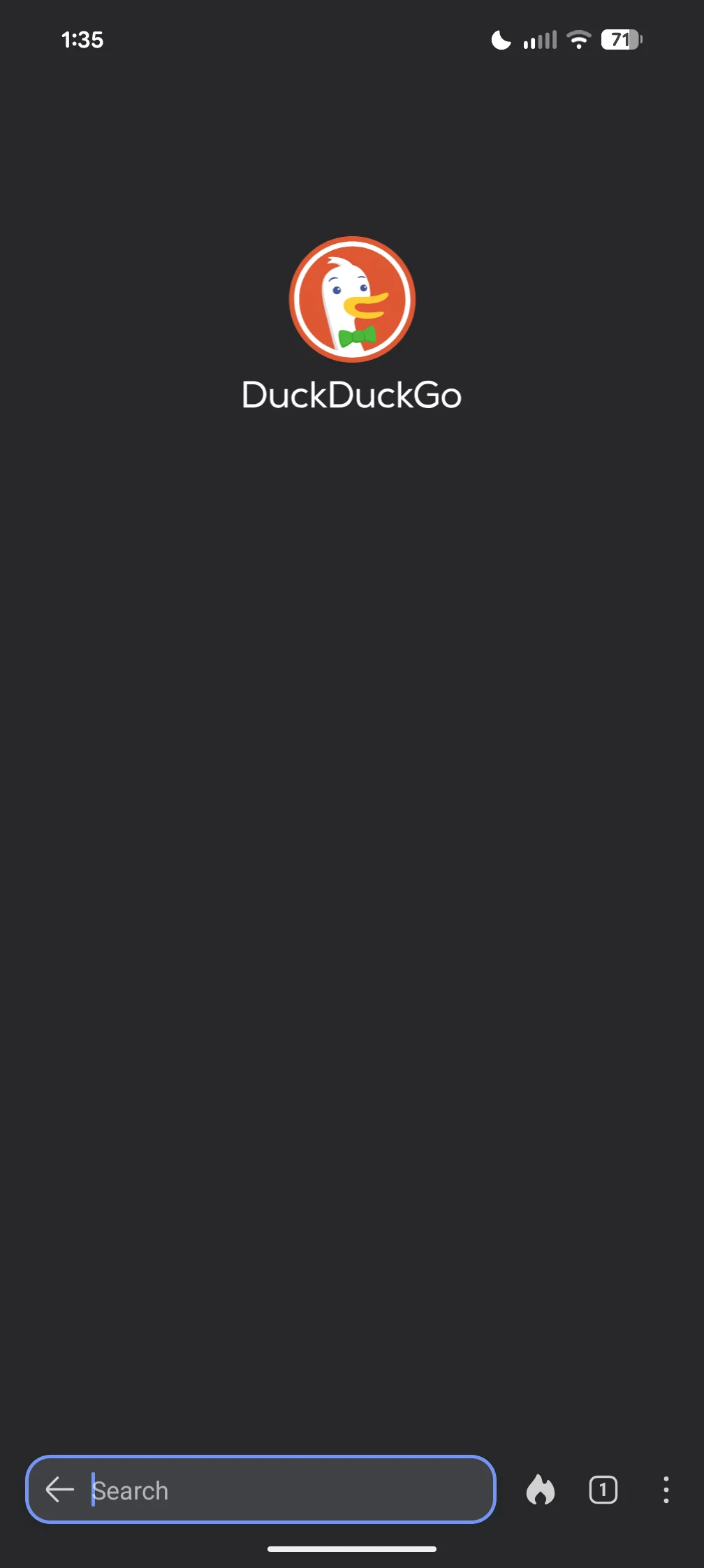
DuckDuckGo Privacy Browser is purpose-built for people who want a simple, private mobile experience. It’s minimal by default and keeps tracking surface area low.
- Privacy: 5/5 DuckDuckGo blocks trackers, doesn’t profile you, and ships privacy protections enabled by default. It’s the core of their product.
- User Interface: 4.5/5 The UI is clean and attractive. On first launch it asks where to place the address bar, the new tab page is intentionally sparse (just a logo), and the AI helper in the address bar by default can be disabled. I love it so much. The only issue is, once again, the gray topbar, which prevents a perfect score.
- Customization: 1.5/5 Offers light/dark themes and a couple of small toggles, but minimal configuration and no extension support. Its simplicity is a feature, but also its biggest limitation. This is the only browser on the list that won’t let you use a different search engine.
Cumulative Score: 11/15
Note: I might daily drive this.
8. Vivaldi
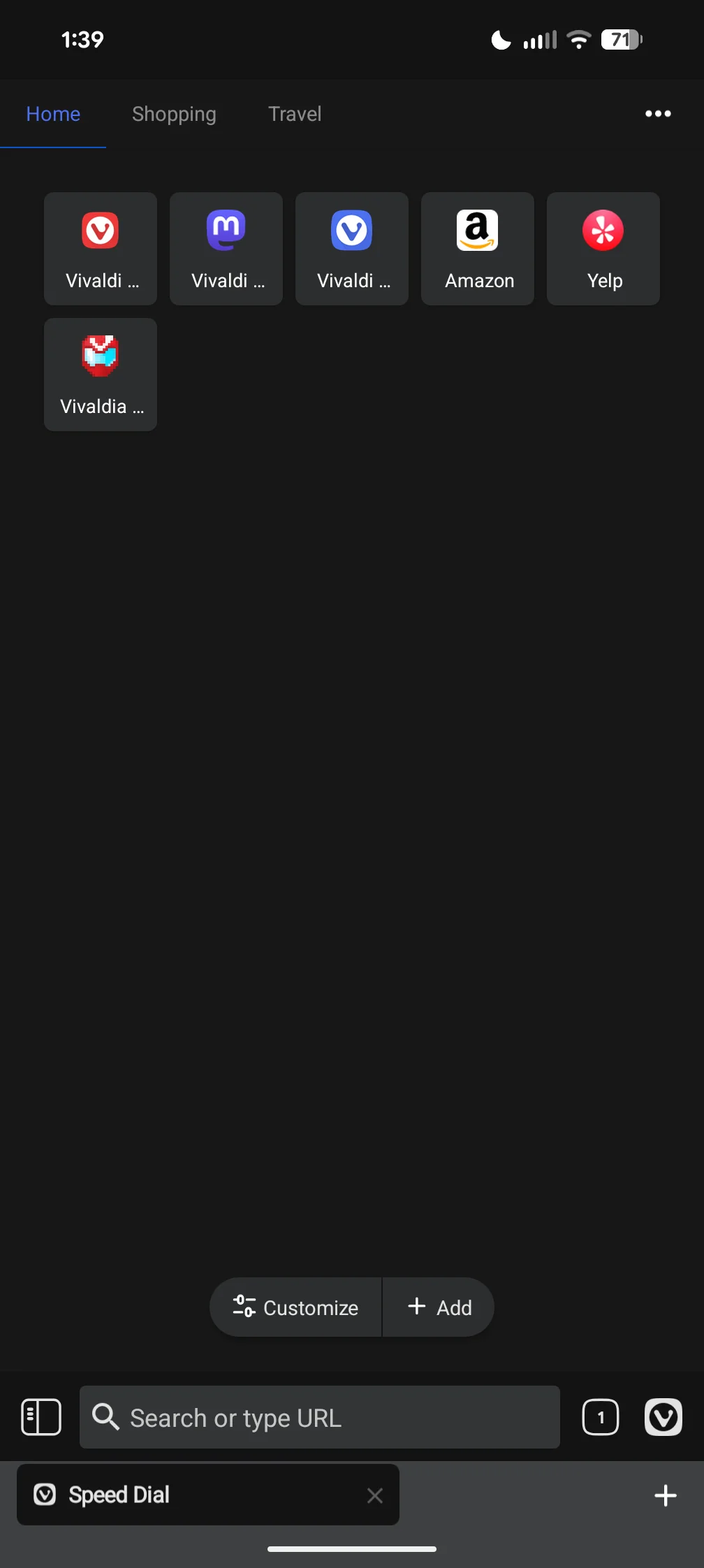
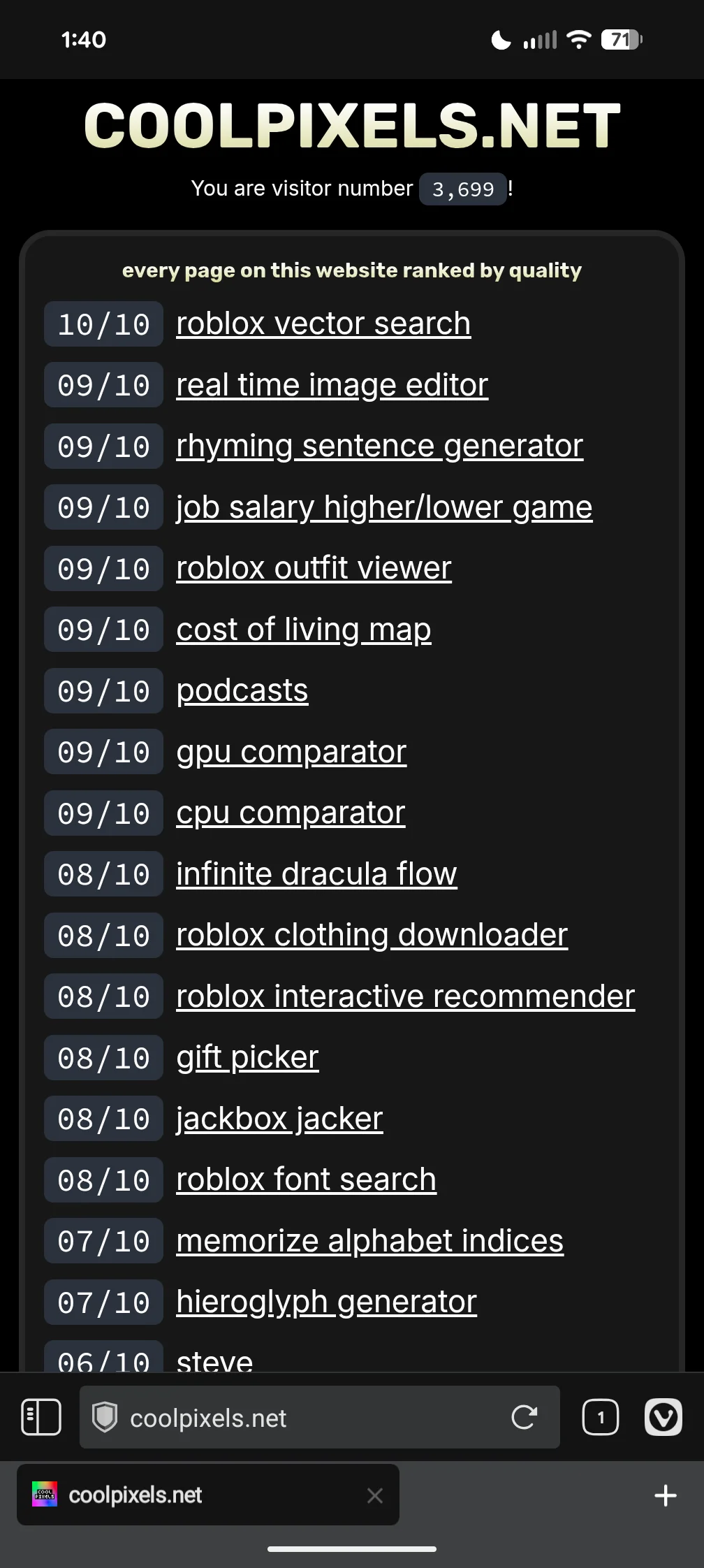
Vivaldi’s Android app brings some of the desktop browser’s configurability to mobile, but it still feels like a port with a few rough edges.
- Privacy: 4/5 Vivaldi includes a built-in ad and tracker blocker and generally doesn’t push tracking-heavy features by default. Telemetry is opt-in.
- User Interface: 2.5/5 The UI defaults to a tab bar and supports an adaptive accent color, but I find the default color scheme unappealing and the overall polish uneven. It looks like it’s built for theming, but theming is sparse on mobile. And yes, it has the gray topbar.
- Customization: 3.5/5 On first launch Vivaldi asks whether you want to “quick start” or “customize it”, and the new tab page can be pared down to nearly nothing. There are several UI toggles, but still no support for extensions and themes are limited to accent colors rather than full theme packs. It’s more customizable than most non-Firefox options.